
Graduate and undergraduate students may use Stellic to drop courses while their registration window is open and prior to the end of drop/add for the semester.
For instructions on how to drop a course after the drop/add period, go to the Dropping a Course or Courses page of the University Advising website.
Step 1: Open the Scheduler.
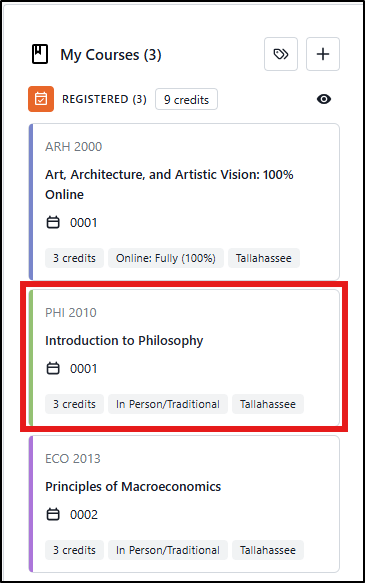
Under the Registered section of My Courses, click on the tile for the course you want to drop. The course details will open in the right panel.
Step 2: Select the Drop Course Action.
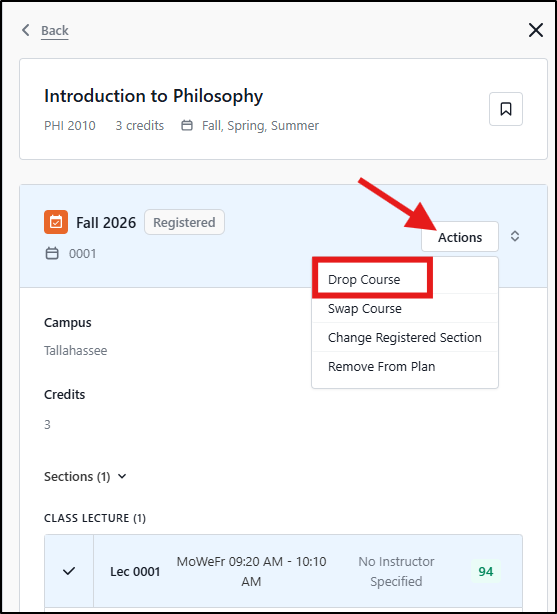
In the right panel, click the Actions button and select Drop Course from the dropdown menu.
Step 3: Confirm Course Information
A pop-up message will appear asking you to verify that the course information for the drop request is correct. Click Confirm.
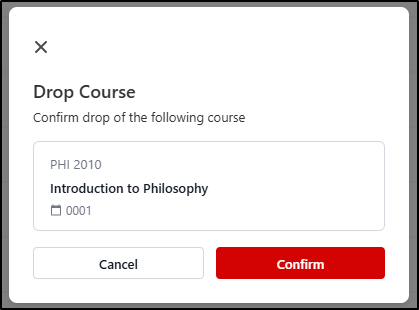
A confirmation message will appear letting you know if the drop was successful.

Note on freshman-level Math and English courses: Per University policy, undergraduate students may not drop English Composition (ENC1101 and ENC2135), lower-level Math classes (MGF1106, MGF1107, MAC1105, and MAC1140), or any required preparatory classes without the permission of their academic dean. For these courses, the Drop Course option will not appear in the Actions dropdown menu. Please contact the Office of Undergraduate Studies at (850) 644-2451 with any questions about your enrollment in these courses.