
The Stellic swap function will allow you drop one class and add a different one in the same transaction. The example below describes how to perform a swap for an undergraduate student who is wanting to drop PHI2010 and add ARH2000 at the same time, but the same process may be used by graduate students wanting to swap their classes.
Step 1: Add Course to Plan
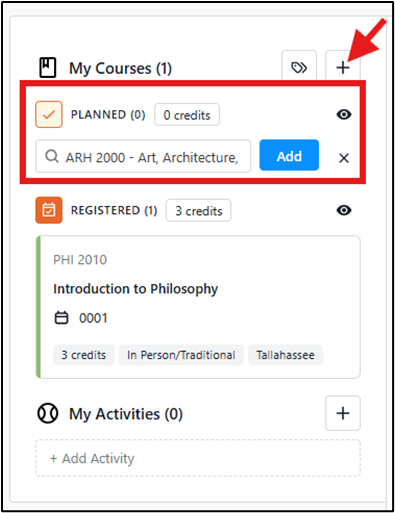
In the Scheduler, click the + sign, select Add Course, and add the course you want to enroll in to your plan.
Step 2: Select a Section of the Course
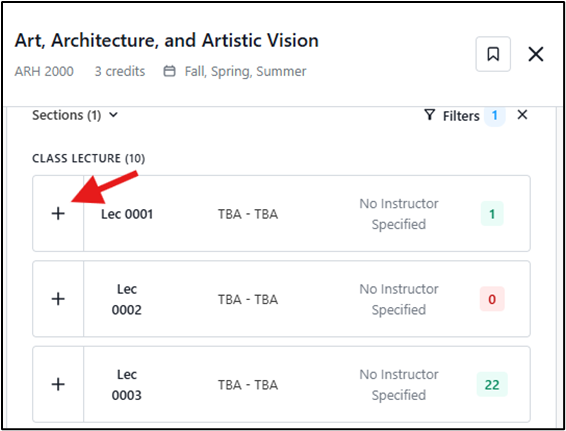
In the tile for ARH2000, click on the link Select a Section and then click on the + sign beside the section of the course you want to swap into.
Step 3: Select the Register via Swap Action
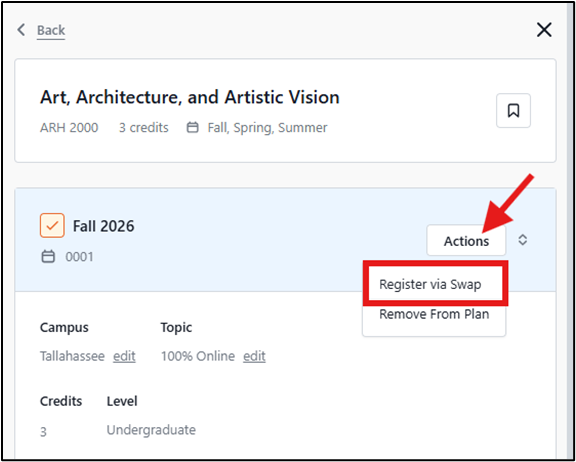
While still viewing the course details for ARH2000 in the right panel, click the Actions button and select Register via Swap.
Step 4: Select and Confirm Classes to be Swapped
A pop-up message will appear. If you are enrolled in more than one course, click the Select a Course box to pick the class you want to swap out of.
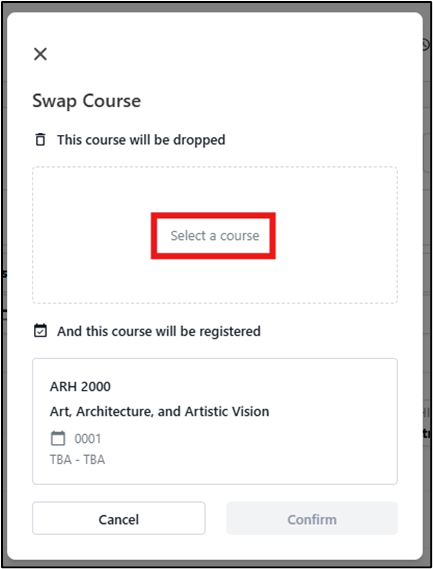
Review the information for accuracy and click Confirm.

A confirmation message will indicate if the swap was successful.